 Ali Ikhwan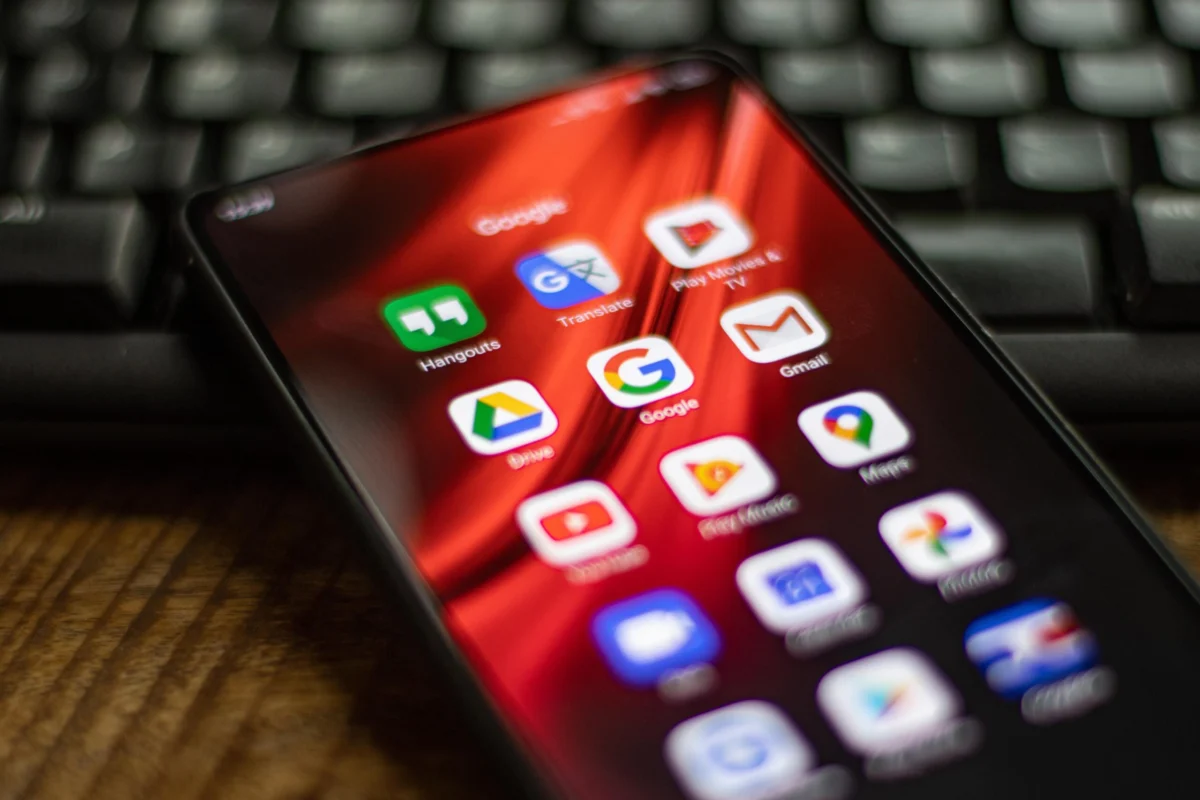
In an era where the smartphone serves as the central repository for a user’s professional and personal life, the loss of a device can be catastrophic. From high-resolution videos of a child’s first steps to critical two-factor authentication (2FA) codes and progress in mobile gaming ecosystems, the data stored on an Android device represents years of accumulated memories and functional utility. As of early 2026, the complexity of mobile operating systems and the sheer volume of data generated by modern applications have made manual backup processes obsolete, replaced instead by a sophisticated array of cloud-based and local synchronization tools. Ensuring the safety of this digital cargo is no longer a luxury but a fundamental necessity of digital citizenship.
The Evolution of Mobile Data Preservation: A Chronology
The landscape of Android data management has shifted significantly over the last decade. In the early 2010s, backing up an Android phone was a cumbersome process often requiring "root" access or the use of complex Android Debug Bridge (ADB) commands through a desktop interface. By 2018, Google began streamlining these processes, integrating backup settings directly into the Android framework via Google Drive.
By 2023, the introduction of Google One unified the backup experience, allowing for seamless transitions between devices. In the current 2026 landscape, backups have become "identity-centric" rather than "device-centric," meaning a user’s digital environment can be recreated on any hardware almost instantaneously, provided the underlying backup infrastructure is correctly configured. This evolution reflects a broader industry trend toward ubiquitous computing, where the hardware is ephemeral but the data is permanent.
Google One: The Primary Pillar of Android Backups
For the vast majority of the three billion active Android users worldwide, Google’s native cloud service represents the most efficient path to data security. Integrated directly into the Android 15 and 16 operating systems, Google One handles everything from system settings and call logs to application data and media.

To initiate a backup on a modern flagship device, such as the Pixel 10 Pro XL, users must navigate to the system settings menu, locate the "Google" section, and select "Backup." The system provides a comprehensive overview of what is being saved, including photos and videos via Google Photos, and device data such as Wi-Fi passwords and wallpaper preferences.
However, the 15 GB of free storage provided by Google remains a significant bottleneck. In 2026, as 4K and 8K video recording become standard, this free tier is often exhausted within months. Google has responded by offering tiered subscription models:
- Basic: 100 GB for $2.00 monthly or $20.00 annually.
- Standard: 200 GB for $3.00 monthly or $30.00 annually.
- Premium: 2 TB for $10.00 monthly or $100.00 annually, which often includes advanced AI features and Gemini integration.
- Enterprise/Power User: Tiers ranging from 5 TB ($25/month) to 30 TB ($150/month) for those managing massive libraries of uncompressed media.
Cross-Platform Connectivity: Windows, Mac, and Chromebook
Despite the dominance of cloud computing, many users prefer the tangible security of a local backup. Transferring data to a personal computer remains a vital strategy for long-term archiving, especially for sensitive documents that a user might not want to store on a third-party server.
On Windows 11 and 12, the "Link to Windows" application has become the gold standard for wireless synchronization. By pairing the phone with a PC, users can drag and drop files with minimal latency. For those preferring a wired connection, the Media Transfer Protocol (MTP) allows the phone to appear as a standard external drive in File Explorer, facilitating the manual backup of folders such as DCIM (photos) and Downloads.
For macOS users, the process has historically been more fragmented due to the lack of native MTP support in Finder. However, updated third-party utilities and Google’s own "Android File Transfer" tool continue to provide a bridge. Users must connect their device via USB-C, select "File Transfer" on the phone’s notification shade, and manually move files to their Mac’s internal storage or an external SSD.

Chromebooks offer perhaps the most integrated experience outside of the Google ecosystem. Through the "Phone Hub" feature, ChromeOS can access a connected Android device’s recent photos and files wirelessly, allowing for near-instantaneous local backups to the Chromebook’s internal storage or a connected Google Drive folder.
Third-Party Cloud Alternatives and Redundancy
Market analysts suggest that relying on a single cloud provider is a "single point of failure" risk. Consequently, many power users employ a secondary cloud service for redundancy. Services such as Dropbox, Microsoft OneDrive, and MEGA offer robust Android applications that can automatically sync camera rolls.
OneDrive is particularly popular among corporate users who already utilize the Microsoft 365 suite, as it provides 1 TB of storage included with most business subscriptions. For those seeking maximum privacy, MEGA offers end-to-end encryption, ensuring that not even the service provider can access the backed-up files. The "Autosync" series of apps remains a top recommendation for users who want to create complex sync rules between their phone’s internal folders and various cloud providers, offering a level of granularity that native apps often lack.
Manufacturer-Specific Solutions: The Samsung Ecosystem
Samsung, the world’s largest Android manufacturer, maintains its own proprietary backup infrastructure to encourage brand loyalty. While Samsung Cloud no longer stores gallery photos (having outsourced that to OneDrive), it remains essential for backing up Samsung-specific data like Notes, Alarms, and the Home Screen layout.
In 2026, Samsung’s "Temporary Cloud Backup" has emerged as a critical tool for the secondary market. This service allows users to upload an unlimited amount of data (with a 100 GB limit per individual file) to Samsung’s servers for 30 days. This is specifically designed for users trading in an old Galaxy device for a new one, ensuring that the transition is seamless even if the user does not pay for a permanent cloud subscription. Additionally, the "Smart Switch" desktop application remains a powerful way to create a full "image" of a Samsung phone on a PC or Mac, allowing for a total restore of the device’s state.

The Critical Importance of 2FA and Passkey Backups
As cybersecurity threats evolve, the methods used to secure accounts have become more complex, creating new challenges for data recovery. Two-factor authentication (2FA) and Passkeys are now standard, but they can become a "lockout" trap if the phone containing the authentication keys is lost.
Google Authenticator now supports encrypted cloud synchronization, a feature that was long-awaited by the security community. When enabled, 2FA tokens are tied to the user’s Google account rather than the physical hardware. For users who prefer a "zero-trust" approach, generating "Backup Codes"—a set of one-time-use alphanumeric strings—is essential. These should be printed and stored in a physical safe.
Furthermore, the transition to Passkeys—cryptographic keys that replace passwords—means that the "identity" of the user is often stored in the device’s Secure Element. To prevent total loss of access, tech experts recommend using cross-platform password managers like Bitwarden or 1Password, which can sync passkeys across multiple devices, or utilizing physical security keys like the YubiKey 5C.
Supporting Data and Market Analysis
Recent data from cybersecurity firms indicates that approximately 25% of smartphone users experience data loss each year due to theft, hardware failure, or accidental deletion. Despite this, nearly 30% of users report that they never perform a full backup of their devices. The economic impact of this data loss is significant, with some estimates suggesting that lost professional data costs small business owners billions of dollars in lost productivity annually.
Industry analysts at Gartner have noted that the shift toward AI-integrated smartphones (AI Phones) will only increase the volume of data that needs backing up. "As AI models begin to run locally on the device, the ‘state’ of a user’s personal AI—its preferences, learned behaviors, and local database—becomes a new category of irreplaceable data," says senior analyst Marcus Thorne. "Backing up your phone in 2026 is no longer just about photos; it’s about backing up your digital twin."

Official Responses and Industry Standards
In a recent policy briefing, Google emphasized its commitment to "data portability," stating that its goal is to make the transition between different Android manufacturers as frictionless as possible. Similarly, the "Data Transfer Project," a collaborative effort between Apple, Google, Meta, and Microsoft, continues to work on standards that allow users to move their data directly from one cloud service to another without having to download and re-upload it.
Samsung has also reiterated its stance on user privacy, noting that all data backed up via its Temporary Cloud Backup service is encrypted and automatically deleted after the 30-day window, ensuring that no residual data remains on their servers after the user has successfully migrated to a new device.
Strategic Implications for the Future
The process of backing up an Android phone has transformed from a technical chore into a strategic operation. As we move deeper into the 2020s, the distinction between "the phone" and "the data" will continue to blur. The hardware is increasingly viewed as a temporary portal to a permanent digital existence hosted in the cloud.
For the user, the takeaway is clear: redundancy is the only true security. A robust backup strategy should involve at least two of the following: a primary cloud provider (Google One), a secondary cloud for media (OneDrive or Dropbox), and a periodic local backup to a physical drive or NAS. By spending a few minutes configuring these systems today, users can protect themselves against the inevitable hardware failures of tomorrow, ensuring that their digital life remains intact regardless of what happens to the physical device in their pocket.